
Self hosting
This guide explains how to self-host MediaLit with an S3-compatible storage provider. Files are stored in your own buckets, and your apps, agents, the dashboard and the CLI talk to your server instead of medialit.cloud.
To run everything on one machine, use Docker Compose. To store files with AWS S3, Cloudflare R2 or your own MinIO instead of the bundled MinIO, see Configuring storage.
Run with Docker Compose
The docker-compose.yml in the MediaLit repository starts the whole stack:
the API and the dashboard
PostgreSQL
MinIO for file storage, with a private
medialitbucket and a publicmedialit-publicbucket created on first startMailpit, which catches the sign-in emails
Caddy, a reverse proxy on port 80 that routes each hostname to the right service
Try it on your computer
git clone https://github.com/codelitdev/medialit.git
cd medialit
cp .env.example .env
docker compose up
The values in .env.example work as they are:
What | Address |
|---|---|
Dashboard |
|
API |
|
MCP server |
|
Sign-in emails (Mailpit) |
|
Sign in to the dashboard with the EMAIL from .env, which is admin@example.com by default, and read the code in Mailpit.
To use the CLI, run medialit login --endpoint http://api.localtest.me.
Upload a test file
In the dashboard, open your app (named My Store at first) and go to Settings. Under API keys, choose Create key and copy the key. It is shown only once.
Upload a file. Replace
YOUR_API_KEYwith the key you copied:echo "hello from MediaLit" > test.txt curl -X POST http://api.localtest.me/media/create \ -H "x-medialit-apikey: YOUR_API_KEY" \ -F "file=@test.txt;type=text/plain" \ -F "access=private"The response is the new file. Note its
mediaId.Seal the file. Uploads stay temporary, and are deleted after a while, until you seal them:
curl -X POST http://api.localtest.me/media/seal/YOUR_MEDIA_ID \
  -H "x-medialit-apikey: YOUR_API_KEY"
In the dashboard, open the app's Files tab. The file appears there.
localtest.me is a public domain that always resolves to 127.0.0.1, so your computer needs a working internet connection to look it up. Do not use localhost or *.localhost instead: inside the containers those names point to the container itself, and the API must reach its own public address to verify sign-ins from MCP clients and the CLI.
.env.example sets NODE_ENV=development, which lets the API run on plain http:// URLs. It also turns off rate limiting on sign-in and writes sign-in codes to the API's log. Use it only on your computer.
Run it on a server
Point three hostnames at your server with DNS records, for example
medialit.example.comfor the API,app.medialit.example.comfor the dashboard ands3.medialit.example.comfor file downloads.Copy
.env.exampleto.envand change it:Set
SITE_ADDRESS,WEB_SITE_ADDRESSandS3_SITE_ADDRESSto the three hostnames.Set
PUBLIC_API_URLandWEB_ORIGINto thehttps://addresses of the API and the dashboard.Delete the
NODE_ENVline.Generate
BETTER_AUTH_SECRETwithopenssl rand -base64 48, and choose your ownMINIO_ROOT_USERandMINIO_ROOT_PASSWORD.Set
EMAIL_HOST,EMAIL_PORT,EMAIL_USER,EMAIL_PASSandEMAIL_FROMto your SMTP server, and remove themailpitservice fromdocker-compose.yml.
In
docker-compose.yml, change the threehttp://storage URLs (CLOUD_ENDPOINT,CLOUD_ENDPOINT_PUBLICandCDN_ENDPOINT) tohttps://. Browsers open file links from these URLs, and anhttps://dashboard does not load files fromhttp://links.Put a reverse proxy that handles HTTPS in front of Caddy, for example your load balancer or a Caddy or nginx instance on the host. Forward all three hostnames to port 80 and keep the original
Hostheader, because Caddy routes requests by hostname. If your proxy needs port 80 on the same server, publish Caddy on another port, for example"8080:80".Run
docker compose up -d.
PostgreSQL is published only on 127.0.0.1:5433 and uses the default password medialit. Keep it that way: do not open port 5433 in your firewall or publish it on all interfaces.
The API does not start without HTTPS: in production it refuses http:// URLs in PUBLIC_API_URL.
Configuring storage
The Docker Compose setup stores files in its bundled MinIO. To use another provider, replace the MinIO settings of the medialit service in docker-compose.yml with the values from the steps below.
Requirements
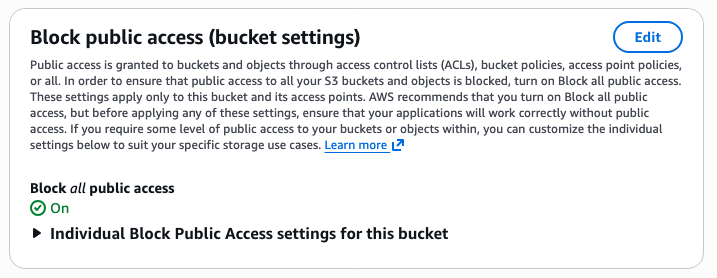
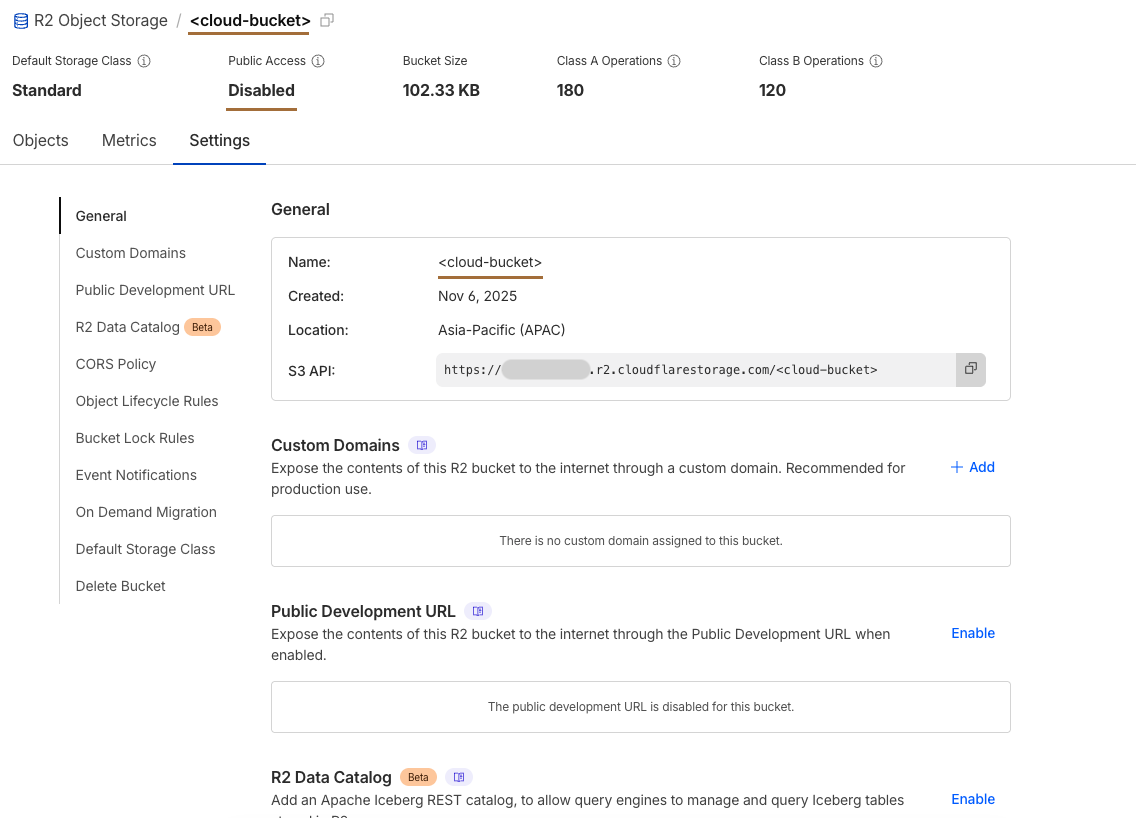
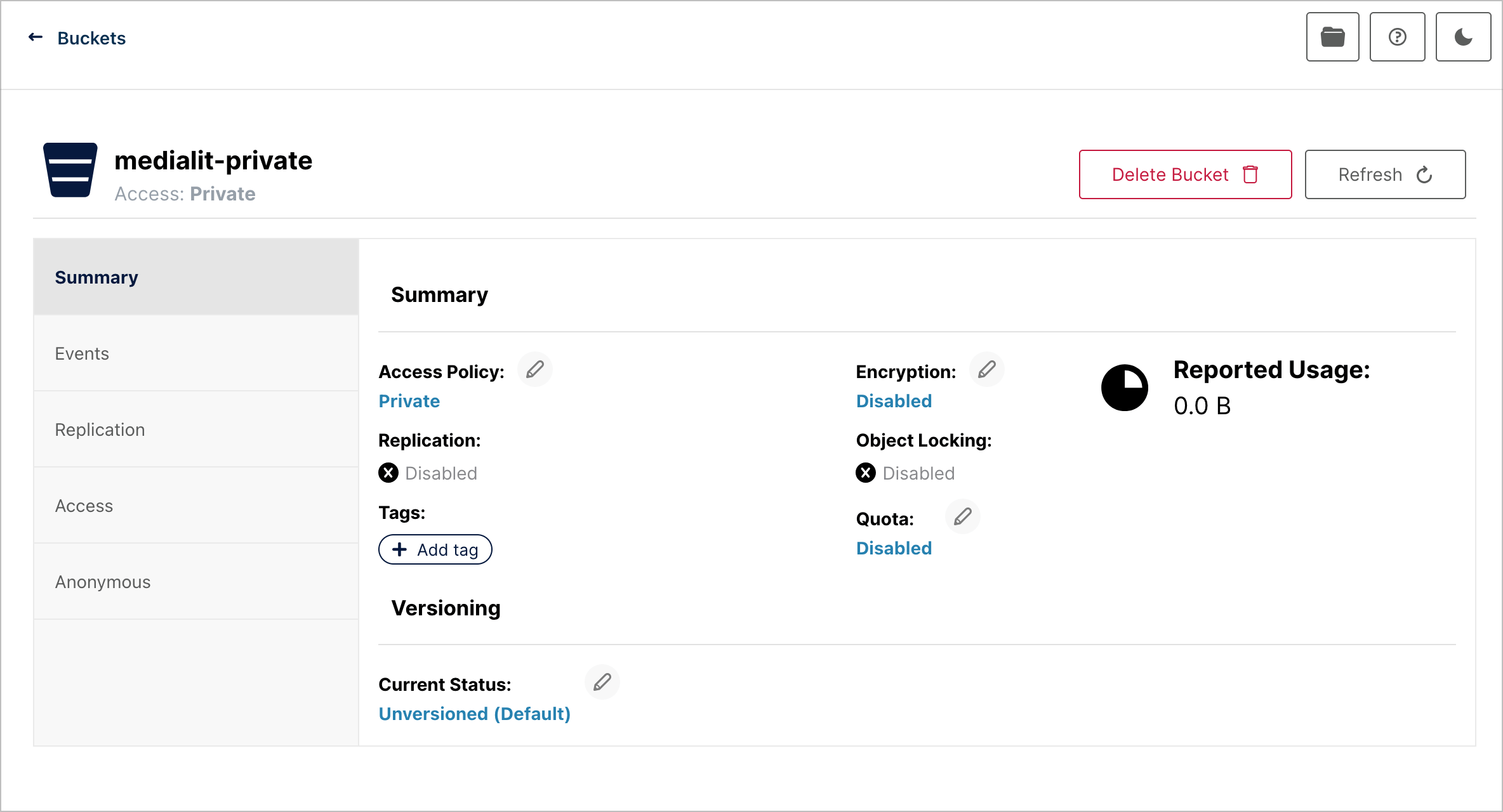
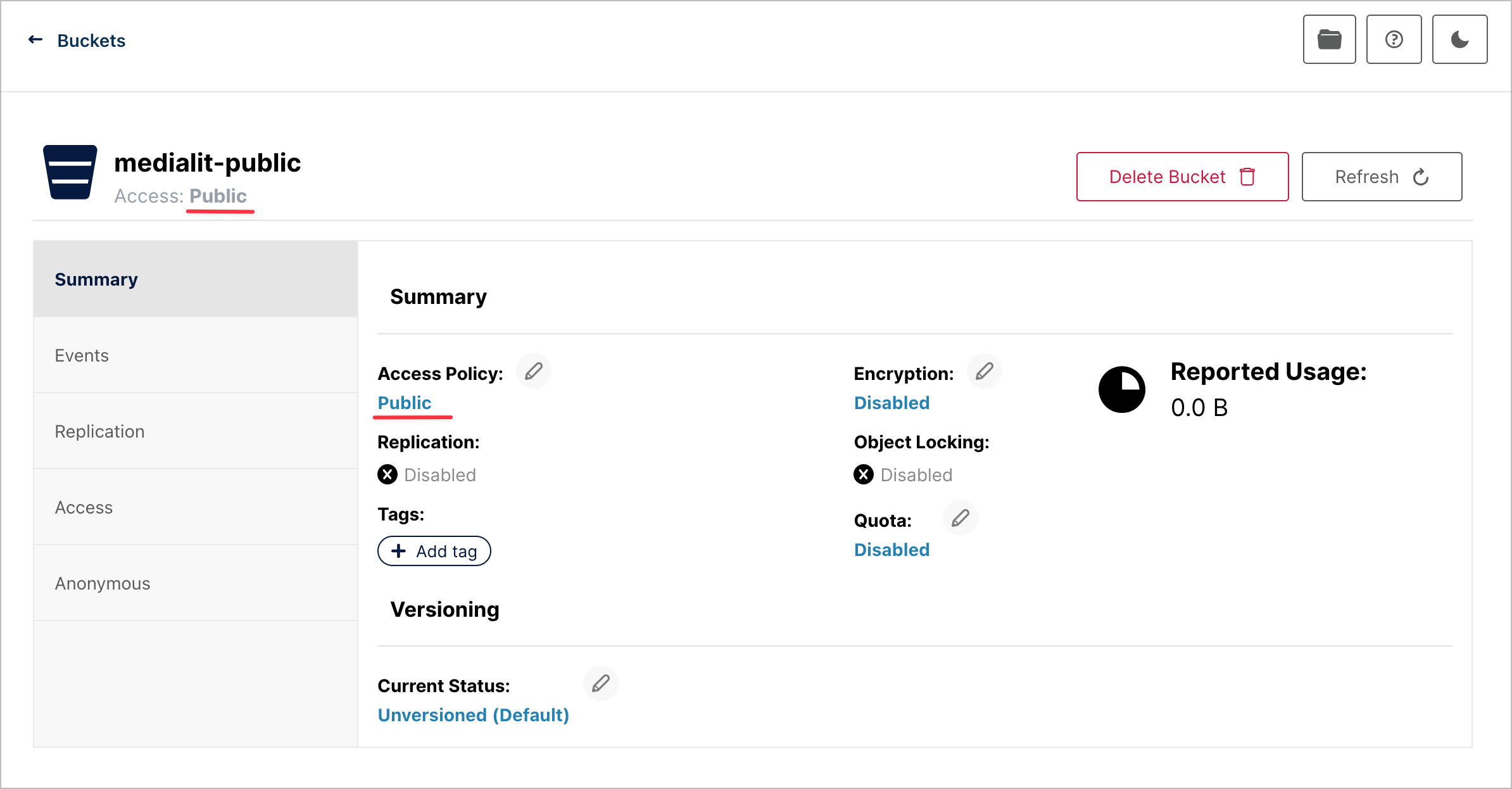
Two buckets: one dedicated to private files and one to public files.
Private bucket access settings: public access disabled.
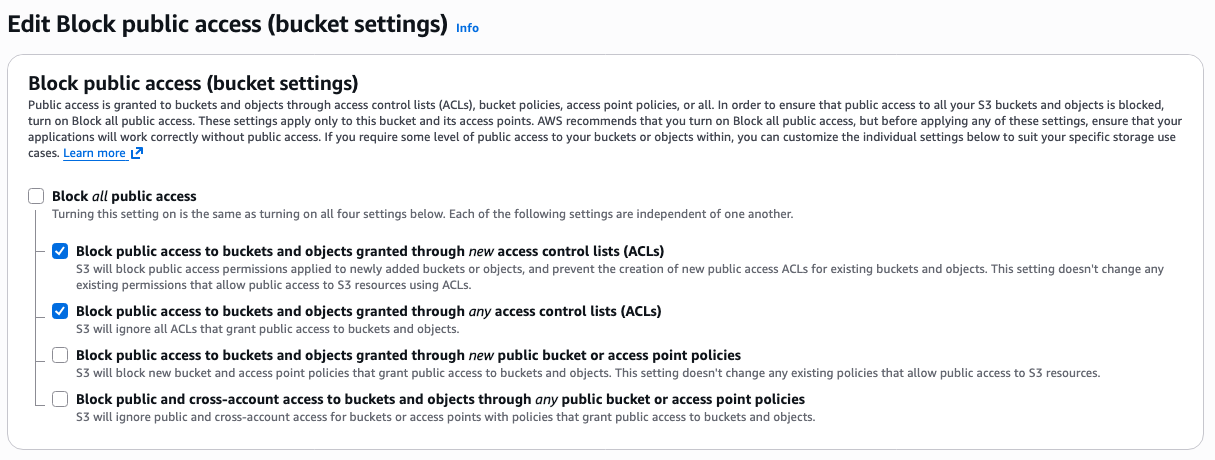
Public bucket access settings: public access enabled.
AWS S3
1. Configure the private bucket
2. Configure the public bucket
2.1 Allow public access
2.2 Configure bucket policy
{
    "Version": "2012-10-17",
    "Statement": [
        {
            "Sid": "PublicReadAccess",
            "Effect": "Allow",
            "Principal": "*",
            "Action": "s3:GetObject",
            "Resource": "arn:aws:s3:::<bucket>/<path-prefix>/*"
        }
    ]
}
3. Set environment variables
CLOUD_KEY=your_aws_access_key
CLOUD_SECRET=your_aws_secret_key
CLOUD_BUCKET_NAME=your_bucket_name
CLOUD_PUBLIC_BUCKET_NAME=your_public_bucket_name
CLOUD_REGION=us-east-1
CDN_ENDPOINT=https://<bucket-name>.s3.<region>.amazonaws.com
Add CloudFront CDN
1. CloudFront distribution configuration
Add the public bucket to CloudFront as an origin.
2. Set environment variables
CDN_ENDPOINT=https://your-cloudfront-endpoint.example.comIn this setup, private URLs are served directly from S3. To serve private bucket content via CloudFront as well, keep reading.
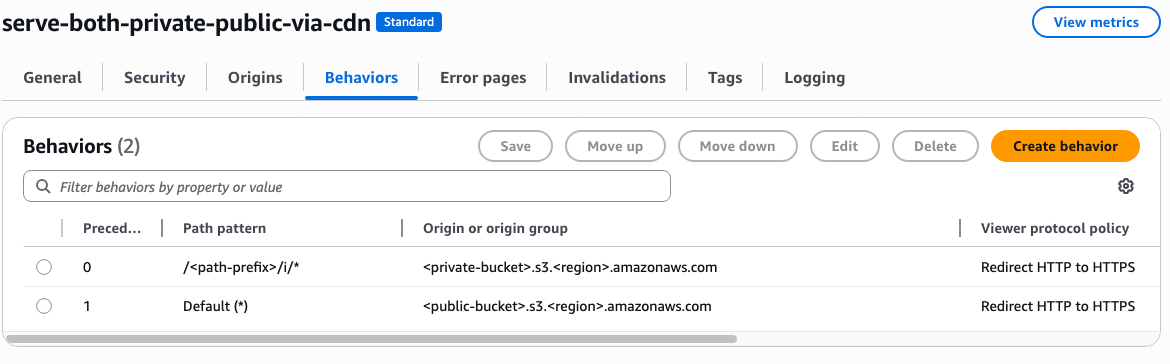
3. Put the private bucket behind CloudFront
3.1. Add the private bucket to CloudFront
Add the private bucket to CloudFront as an origin.
3.2. Set environment variables
ACCESS_PRIVATE_BUCKET_VIA_CLOUDFRONT=true # Enables URL signing for CloudFront
CLOUDFRONT_PRIVATE_KEY="-----BEGIN PRIVATE KEY-----\nYOUR_PRIVATE_KEY_CONTENTS\n-----END PRIVATE KEY-----"
CLOUDFRONT_KEY_PAIR_ID=YOUR_KEY_PAIR_ID
Cloudflare R2
1. Configure the private bucket
2. Configure the public bucket
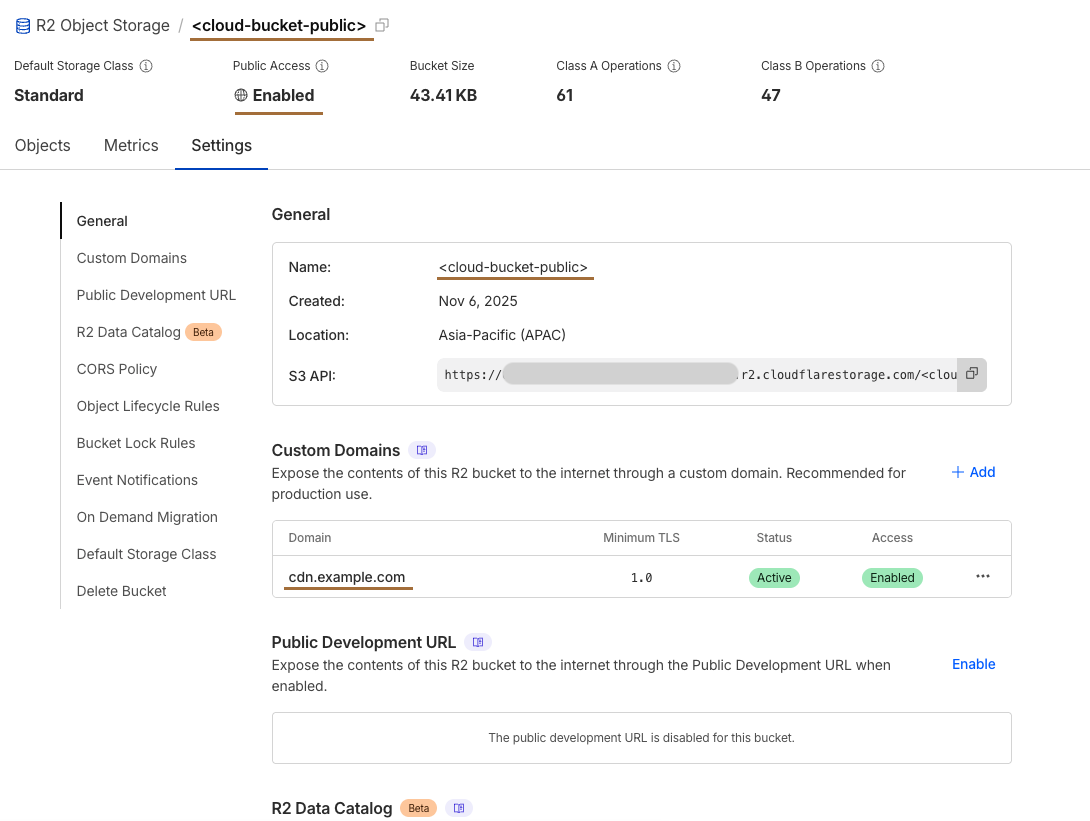
3. Set environment variables
CLOUD_KEY=your_cloudflare_r2_access_key
CLOUD_SECRET=your_cloudflare_r2_secret_key
CLOUD_BUCKET_NAME=your_private_bucket_name
CLOUD_PUBLIC_BUCKET_NAME=your_public_bucket_name
CLOUD_REGION=auto
CLOUD_ENDPOINT=https://<your-account-id>.r2.cloudflarestorage.com
CLOUD_ENDPOINT_PUBLIC=https://<your-account-id>.r2.cloudflarestorage.com # Same URL as CLOUD_ENDPOINT
CDN_ENDPOINT=https://<your-cdn-endpoint>.r2.dev # For accessing public bucket content
DISABLE_TAGGING=true
In the Cloudflare setup, you cannot serve private bucket content through the CDN.
Minio
Minio by default uses Path Style (e.g. https://minio-api.example.com/bucket-name) while MediaLit/AWS S3 uses Virtual Hosted Style (e.g. https://bucket-name.minio-api.example.com)
In order for Minio to be used as object storage backend for MediaLit, additional DNS entry and certificates need to be generated.
1. Configure Reverse Proxy
A reverse proxy route for *.minio-api.example.com need to be created for Minio API.
Below example uses Traefik IngressRoute in Kubernetes to create a new Ingress route. Adjust accordingly for your Reverse Proxy:
apiVersion: traefik.io/v1alpha1
kind: IngressRoute
metadata:
    name: minio-api
spec:
    entryPoints:
        - websecure
    routes:
        - match: Host(`minio-api.example.com`)
          kind: Rule
          services:
              - name: minio-api
                port: 9000
        - match: HostRegexp(`^.+\.minio-api\.example\.com$`)
          kind: Rule
          services:
              - name: minio-api
                port: 9000
---
kind: Service
apiVersion: v1
metadata:
    name: minio-api
spec:
    type: ExternalName
    ports:
        - name: http
          port: 9000
    externalName: <ip address of minio VM>
2. Configure DNS: The following 2 DNS entries need to be created in DNS provider:
DNS Name | Record Type | IP Address |
|---|---|---|
minio-api.example.com | A | Reverse Proxy IP |
*.minio-api.example.com | A | Reverse Proxy IP |
Certificates:
Additional SSL certificate for wildcard subdomain need to be created either in Minio VM (e.g CertBot), or in reverse proxy when using SSL termination.
Below example uses Cert Manager in Kubernetes to issue new certificate for reverse proxy.
Adjust accordingly for your reverse proxy or Minio VM certificate generator of choice.
apiVersion: cert-manager.io/v1
kind: Certificate
metadata:
    name: cluster-certificate
    namespace: cert-manager
spec:
    secretName: cluster-certificate-tls
    issuerRef:
        name: cloudflare-issuer
        kind: ClusterIssuer
    commonName: "*.example.com"
    dnsNames:
        - "*.example.com"
        - "minio-api.example.com"
        - "*.minio-api.example.com"
3. Configure private bucket
4. Configure public bucket
5. Set environment variables
CLOUD_KEY=your_minio_access_key
CLOUD_SECRET=your_minio_secret_key
CLOUD_BUCKET_NAME=your_private_bucket_name
CLOUD_PUBLIC_BUCKET_NAME=your_public_bucket_name
CLOUD_REGION=your_minio_region
CLOUD_ENDPOINT=https://<your_minio_api_endpoint>
CLOUD_ENDPOINT_PUBLIC=https://<your_minio_api_endpoint> # Same URL as CLOUD_ENDPOINT
CDN_ENDPOINT=https://<your_minio_api_endpoint> # For accessing public bucket content
In the Minio setup, you cannot serve private bucket content through the CDN.
Set upload limits
The Docker Compose setup runs in OSS mode (MEDIALIT_DEPLOYMENT_MODE=oss), where accounts have no upload or storage limits and there is no billing.
With MEDIALIT_DEPLOYMENT_MODE=cloud, these variables set the largest file and the total storage per account, in bytes. "Subscribed" applies to accounts with an active paid subscription, which comes only from billing checkout.
MAX_UPLOAD_SIZE_SUBSCRIBED=2147483648        # 2 GB
MAX_UPLOAD_SIZE_NOT_SUBSCRIBED=52428800      # 50 MB
MAX_STORAGE_ALLOWED_SUBSCRIBED=107374182400  # 100 GB
MAX_STORAGE_ALLOWED_NOT_SUBSCRIBED=1073741824 # 1 GB
TEMP_MEDIA_EXPIRATION_HOURS=24               # unsealed uploads are deleted after this
Create a key at startup
When another service in the same Docker Compose file uses MediaLit, for example a bundled SendLit, FrontLit or CourseLit, it needs a working key before anyone can open the dashboard. Set MEDIALIT_BOOTSTRAP_API_KEY and MediaLit creates that key for the EMAIL user's default app every time it starts, before it reports healthy:
# .env
MEDIALIT_APIKEY=ml_live_<output of: openssl rand -hex 32>
services:
medialit:
environment:
EMAIL: ${ADMIN_EMAIL}
MEDIALIT_BOOTSTRAP_API_KEY: ${MEDIALIT_APIKEY}
healthcheck:
test: ["CMD", "wget", "-qO-", "http://localhost:8000/health"]
your-app:
environment:
MEDIALIT_APIKEY: ${MEDIALIT_APIKEY}
MEDIALIT_SERVER: http://medialit:8000
depends_on:
medialit: { condition: service_healthy }The value must be at least 43 characters from
A-Z,a-z,0-9,_and-. MediaLit refuses to start otherwise, and also ifEMAILis missing.To rotate the key, change the value and restart. MediaLit revokes the old key when it starts with the new one.
While the key is configured, the dashboard shows it as Managed by configuration and can't revoke it. Remove the setting to manage it like any other key.
MediaLit never writes the key to its logs.
Point your apps at your server
Set MEDIALIT_ENDPOINT wherever you use the Node.js SDK:
MEDIALIT_ENDPOINT=https://medialit.example.com
MEDIALIT_API_KEY=your_api_key
If your server reaches MediaLit on a different URL than browsers do, for example inside Docker, pass publicEndpoint to createSignatureHandler. MCP clients connect to https://medialit.example.com/mcp, and the CLI logs in with medialit login --endpoint https://medialit.example.com.
Upgrade your server
docker compose pull && docker compose up -d upgrades MediaLit. The init service applies database migrations before the API starts. If you run the image without Docker Compose, run bun apps/api/src/db/migrate.ts with the new image before starting the API.
Back up the database before upgrading. Migrations can't be rolled back, and the hashed API keys migration removes plaintext keys for good.
Upgrading from v0.5.x to v0.6.0
v0.6.0 stores API keys as hashes. Follow the upgrade guide before you upgrade, because it needs a backup and a check for media that belongs to no app.
Monitor your server
Find out that MediaLit is down before your users do.
Uptime: point an uptime monitor such as Better Stack or UptimeRobot at
https://medialit.example.com/ready. It returns 200 when the API is running and can reach its database, and 503 otherwise.End to end: run the synthetic check every 2 hours from a machine other than your MediaLit server. It uploads a tiny file, seals it, downloads it and deletes it, so it also catches storage and CDN problems that
/readycan't see.
MEDIALIT_APIKEY=your_monitoring_app_key \
MEDIALIT_SERVER=https://medialit.example.com \
MEDIALIT_SYNTHETIC_HEARTBEAT_URL=https://uptime.betterstack.com/api/v1/heartbeat/... \
  npx @medialit/integration-tests@0.2.0 synthetic
Create a separate app for monitoring and use its API key: the synthetic check only touches its own files. With a heartbeat URL from Better Stack or Healthchecks.io, you are alerted when a check fails and when checks stop arriving.